How to Turn On Do Not Disturb on iPhone: Easy Guide
Picture this. You finally sit down for dinner. Your phone buzzes. Then it buzzes again. A promo alert, a group chat, and a news flash all arrive within five minutes. Sound familiar? Digital distractions like these chip away at your quiet time every single day. The good news is that your iPhone has a simple fix built right in.
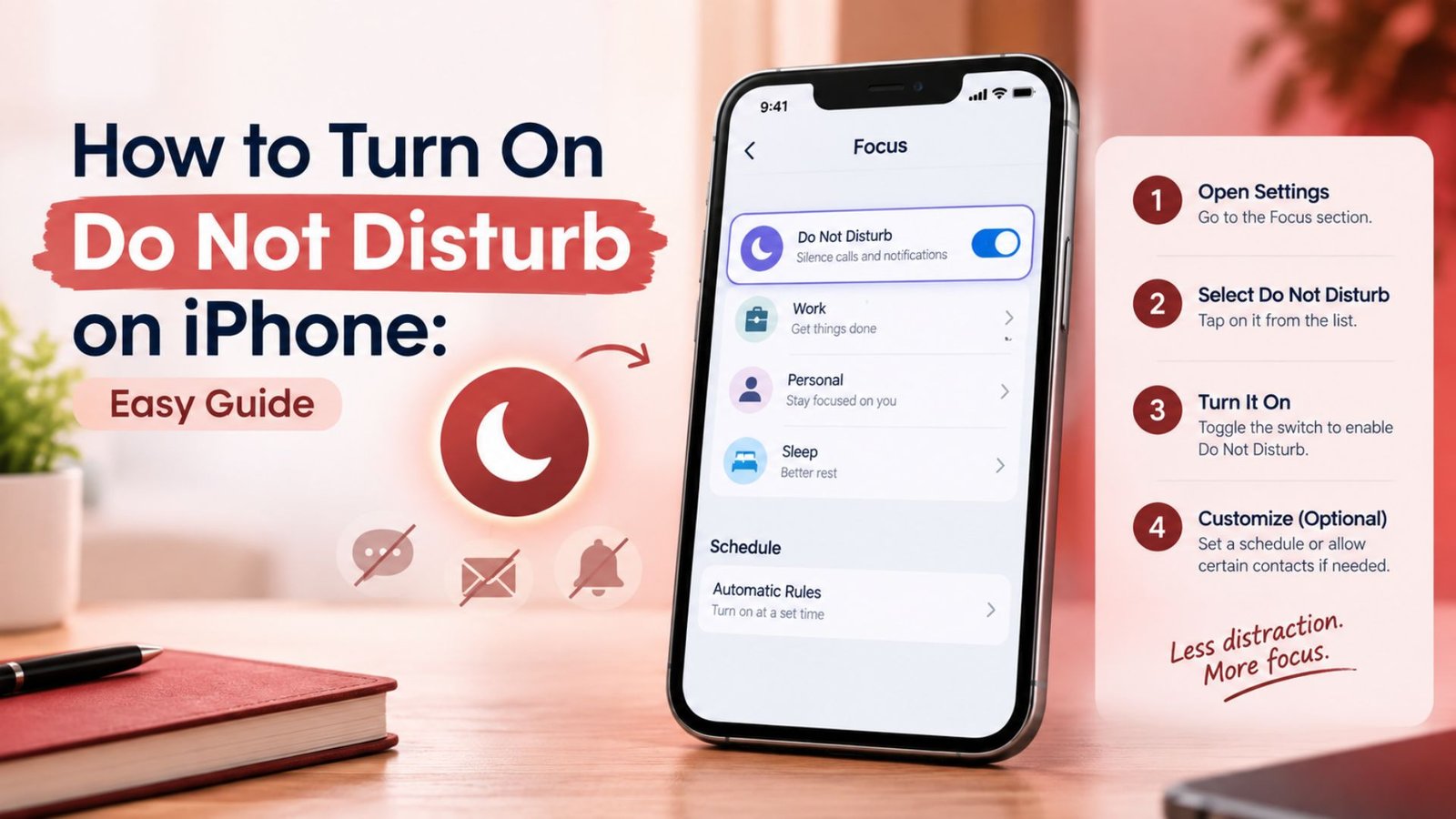
Here’s the quick answer to how to turn on Do Not Disturb on iPhone. Open Control Center, tap Focus, and select Do Not Disturb. That’s it. Your iPhone will silence calls and alerts right away. A small moon icon appears in the status bar so you know it’s working. Your phone still works for everything else. You can browse, text, and snap photos as usual.
This guide goes much deeper than that one tap. You’ll learn how to turn on Do Not Disturb, how to turn off Do Not Disturb, and how to set a DND duration. You’ll also see how to create a recurring schedule, fix a DND that keeps turning on, and use Intelligent Breakthrough & Silencing. Menu names can change a little between iOS versions. The steps below match what Apple describes on its Do Not Disturb support page.
Read More About: Jessica Rose Lee: Everything to Know About Tom Welling’s Wife
What Do Not Disturb Does and When You Might Use It?
Do Not Disturb is a Focus mode that quiets your notifications, calls, and alerts. It helps you reduce distractions without turning your phone off. Apple says Do Not Disturb can silence calls, alerts, and notifications. Think of it like closing your office door. People can still knock on the glass if it’s truly urgent. The Do Not Disturb icon shows up in the status bar and on the Lock Screen. Your Home Screen, apps, camera, and music keep working. This makes phone usability high even while the phone stays calm.
You can use DND almost anywhere. Sleep is the classic case. Meetings, studying, driving, watching movies, and workouts are great fits too. It works the same way on an iPad running iPadOS. Other platforms offer a close cousin. Android phones such as a Google Pixel or Samsung Galaxy have their own Do Not Disturb settings. The big idea is attention management. You decide when your phone gets to interrupt you. That’s different from muting the whole device. It’s also different from Airplane Mode, which cuts wireless connectivity instead of managing incoming interruptions.
| Feature | What it does | What still works |
| Do Not Disturb | Silences notifications, calls, and alerts | Apps, Wi-Fi, cellular data, camera |
| Silent switch | Mutes ringtone and alert sounds | Screen still lights up for alerts |
| Airplane Mode | Turns off wireless connections | Offline apps, photos, saved music |
How to Turn Do Not Disturb On or Off on iPhone
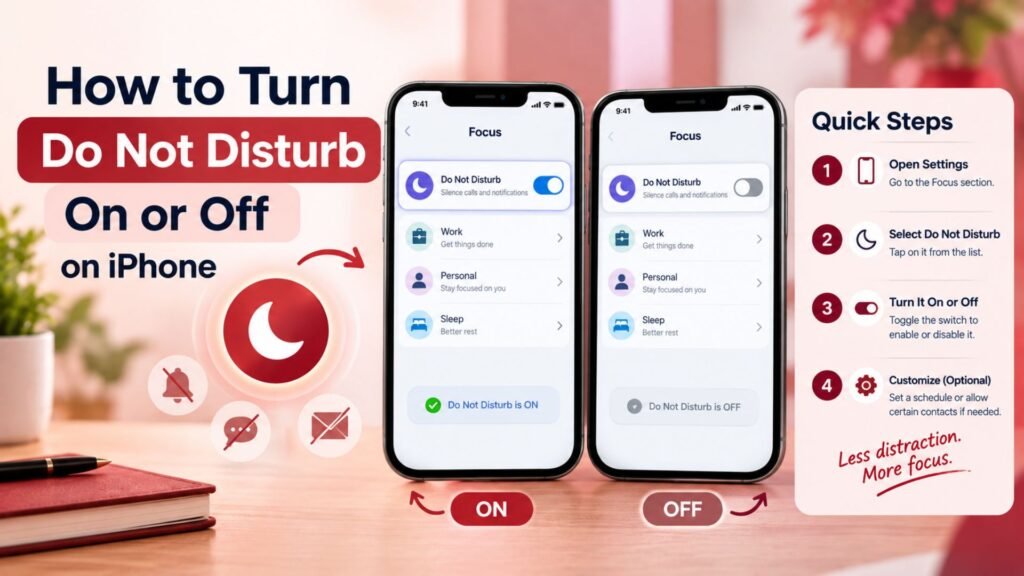
How to turn Do Not Disturb on or off depends on how fast you need it. Three methods cover nearly every situation. Control Center is the quickest. The Settings app gives you the most control. Siri lets you work hands-free. Since iOS 15, DND lives inside the Focus settings. That’s why you’ll see the Focus button instead of a plain moon switch. Once you learn the three paths, you can turn on DND in a couple of seconds from anywhere.
Each method suits a different moment. A crowded train calls for a fast tap. A fresh phone setup calls for a calm trip through Settings. A messy kitchen calls for your voice. Pick the one that fits your hands, your time, and your mood. Then stick with it until it becomes a habit. The sections below walk through every method in plain steps.
Control Center Method
Swipe down from the top-right corner of the screen on a Face ID iPhone. On an iPhone SE or an iPhone 8 or earlier, swipe up from the bottom edge instead. Next, tap Focus and select Do Not Disturb. In iOS 18 and later, you can also tap the crescent moon icon on the Focus button directly. On many versions, you can touch and hold the Focus button to see more options. A purple moon means DND is on. To turn off Do Not Disturb, tap the same icon again. The button then returns to the plain word “Focus.” If another mode like Work Focus or Sleep Focus is active, tap its icon to switch it off.
Settings Method
Open Settings > Focus > Do Not Disturb when you want more control than a quick tap offers. This is where you change DND settings and customize Focus to fit your life. You’ll find Allow Notifications, Set a Schedule, Focus Filters, and Customize Screens on this page. Under Allow Notifications, you can allow certain people and allow certain apps. Everyone else stays quiet. This is the best place to build custom interruption rules because every option sits on one screen. Spend five minutes here once. Your phone will then follow the notification preferences you chose.
Using Siri
Use Siri to turn on DND by saying, “Hey Siri, turn on Do Not Disturb.” To turn off Do Not Disturb, say, “Hey Siri, turn off Do Not Disturb.” Use Siri to turn off DND whenever your hands are busy, such as while cooking or loading the car. Voice commands also help people who prefer hands-free control for phone accessibility reasons. If Siri doesn’t respond, check that Siri is enabled in Settings. Your phone may also need an internet connection for some requests. Try the Control Center method as a backup. It never needs your voice.
| Method | Best for | Time needed |
| Control Center | Instant quiet | About 2 seconds |
| Settings app | Deep customization | About 5 minutes |
| Siri | Hands-free moments | About 3 seconds |
Set a Timer or Make a Schedule
Do you want quiet for one hour or for every night? A timer handles the first need. A schedule handles the second. To set a DND duration, open Control Center and look at the Focus menu. Many iOS versions show choices like one hour or until a set time. The layout shifts between releases. You may need to tap the small ellipsis next to Do Not Disturb. Temporary DND is perfect for short events. Think of a doctor’s visit, a test, or a quick nap. When the time ends, DND shuts off by itself. You don’t have to remember a thing.
For routines, create a recurring schedule. Go to Settings > Focus > Do Not Disturb and use Set a Schedule. Pick the days and the start and end times. Your iPhone will then turn on DND automatically every time. This gives you automatic quiet periods with zero effort. A bedtime schedule might run from 10 p.m. to 6:30 a.m. A work hours schedule might run from 9 a.m. to 5 p.m. A sleep schedule can pair nicely with Sleep Focus. This kind of scheduled silence builds healthy recurring routines. It also protects your uninterrupted concentration.
| Situation | Best choice | Sample setting |
| Quick meeting | Temporary DND | One hour |
| Nightly sleep | Bedtime schedule | 10 p.m. to 6:30 a.m. |
| Office day | Work hours schedule | Weekdays, 9 a.m. to 5 p.m. |
| Study session | Timer | 45 minutes |
If Do Not Disturb Turns Back On Automatically
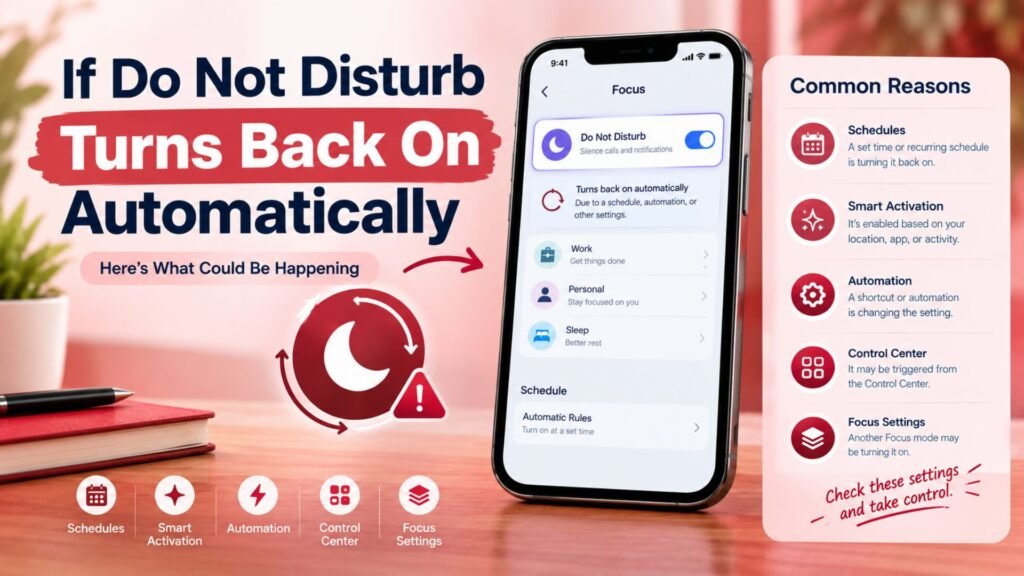
Does your Do Not Disturb turn on by itself? Don’t panic. An active schedule or automation almost always causes it. Apple notes that DND may be scheduled to turn on at certain times. When DND keeps turning on, the first step is simple. Check active schedules in Settings > Focus > Do Not Disturb. Look for old bedtime or work hours entries you forgot about. Then disable automatic schedules you no longer need. This one check solves most cases of unexpected DND activation.
Other sneaky causes exist. Share Across Devices can copy a Focus from another Apple device to your phone. A Lock Screen connected to Focus can also trigger DND when you switch wallpapers. Focus automation based on location or app use can start it too. Another mode like Driving Focus or Reduce Interruptions might be active instead of DND. Work through each setting one by one. Then test notification settings by asking a friend to call or text you. A quick test confirms the fix worked.
| Likely cause | Where to look | Quick fix |
| Old schedule | Settings > Focus > Do Not Disturb | Delete or edit it |
| Share Across Devices | Focus settings | Switch it off |
| Linked Lock Screen | Customize Screens | Unlink the wallpaper |
| Another Focus mode | Control Center | Tap its icon to end it |
Change Your Do Not Disturb Settings
Ready to change DND settings? Start at Settings > Focus > Do Not Disturb. Here you decide which important notifications survive the silence. Tap People to allow certain people, such as family calls or emergency contacts. Tap Apps to allow certain apps, like a banking or calendar app. This gives you people-specific notification permissions and app-specific behavior. Everything else stays hushed, so you silence unimportant notifications with no extra work. You can also turn on repeated calls so a second call can get through. That builds a smart safety net for real emergencies. Some apps can send critical notifications too. Those may still reach you depending on your setup.
Focus Filters add another layer. They change how certain apps behave while DND is on. A work email app might hide personal accounts, for example. Android users get similar tools. Swipe down to use Quick Settings on Android and tap the Do Not Disturb tile. On newer Android versions, open Modes > Do Not Disturb and tap Turn on now. There you’ll find notification filters and automatic rules. Google says you can let a call through if the same person calls twice within 15 minutes using repeat callers. Menus differ on a Samsung Galaxy with One UI or a Google Pixel. That’s why manufacturer-specific menus and software-version differences can feel confusing. Use the search bar in Settings if you get lost.
| Platform | Fastest method | Full settings path |
| iPhone and iPad | Control Center | Settings > Focus > Do Not Disturb |
| Android (newer) | Quick Settings menu | Modes > Do Not Disturb |
| Android (older) | Quick Settings menu | Sound & vibration > Do Not Disturb |
Switch to a Lock Screen Connected to Do Not Disturb
Did you know your wallpaper can flip DND for you? In iOS 16 and later, you can link a custom iPhone Lock Screen to a Focus. Apple explains this on its Focus support page. Go to Settings > Focus > Do Not Disturb and tap Customize Screens. Choose a Lock Screen or Home Screen to link. Now a Lock Screen connected to Focus turns Do Not Disturb on the moment you pick it. This Focus-linked wallpaper gives you a personalized Focus experience. You see the mood change on screen and your phone notifications change with it.
Here’s a simple case. Picture Maya, a nurse who works nights in Chicago. She links a dark, calm Lock Screen to Do Not Disturb. Each morning before bed, she swipes to that wallpaper. Her phone goes quiet in one move. At night, she swipes back to a bright Lock Screen with her usual alerts. This example shows how small design choices create strong habits. The same trick works on an iPad Lock Screen. Just remember one thing. A linked wallpaper can also explain why DND starts “by itself.” If it does, check Customize Screens and unlink it.
Read More About: Team Aelftech com: Services, Features, Benefits & How It Works in 2026
Use Intelligent Breakthrough & Silencing with Do Not Disturb
Intelligent Breakthrough & Silencing uses Apple Intelligence to sort your alerts. It helps allow important notifications through while silencing unimportant notifications. Think of it as a smart assistant at the door. It judges which visitors deserve a knock. Apple says this feature needs an iPhone 16 or later, an iPhone 15 Pro, or an iPhone 15 Pro Max, as noted on its support page. To use it, open Settings > Focus and look for Intelligent Breakthrough & Silencing. This gives you intelligent notification filtering on top of your manual lists.
It works best as a partner to your own rules. Keep your allowed people and allowed apps lists in place. Then let Apple Intelligence catch the surprises. A message about a school pickup may break through. A shopping promo will stay quiet. That balance helps you manage interruptions without missing critical interruptions. Not every phone supports it. If yours doesn’t, don’t worry. Manual notification controls still do a great job. Check your Focus settings now and see whether the option appears.
FAQs
Where is the setting for Do Not Disturb?
You’ll find the Do Not Disturb settings at Settings > Focus > Do Not Disturb on your iPhone.
You can also reach it fast by opening Control Center and tapping the Focus button.
How can I activate Do Not Disturb?
Open Control Center, tap Focus, and select Do Not Disturb to turn on Do Not Disturb right away.
You can also say, “Hey Siri, turn on Do Not Disturb,” or set a DND schedule to turn on DND automatically.
How do I know if DND is activated?
Look for the crescent moon Do Not Disturb icon in the status bar and on your Lock Screen.
In the Control Center, the Focus button shows a purple moon when DND is on and the plain word “Focus” when it’s off.
What will happen if you turn on Do Not Disturb on your iPhone?
Your iPhone will silence calls and alerts, and your notifications won’t make noise or light up your screen as usual.
Your apps still work, and any allowed people or allowed apps you chose can still get through.
How do I turn on Do Not Disturb on my iPhone quickly?
Open Control Center, tap Focus, and select Do Not Disturb. In iOS 18 and later, tap the moon icon on the Focus button for an even faster turn on Do Not Disturb move. If you prefer voice, say, “Hey Siri, turn on Do Not Disturb,” and your phone does the rest.
How do I turn off Do Not Disturb on iPhone?
Learning how to turn off Do Not Disturb on iPhone takes seconds. Open Control Center and tap the active Do Not Disturb icon until the label says “Focus” again. If it comes back, check active schedules under Settings > Focus > Do Not Disturb and disable automatic schedules you don’t use.
Why does Do Not Disturb keep turning on by itself?
An old schedule, a Share Across Devices setting, or a linked Lock Screen usually causes it. Review your automatic rules and Focus automation in the Settings app. Remove anything you don’t need, then test notification settings with a quick call to confirm the fix.
Can I allow certain calls while Do Not Disturb is on?
Yes. Open Settings > Focus > Do Not Disturb > People and allow certain people to reach you. You can also allow certain apps under the Apps section. This keeps family calls and emergency contacts open while the rest of your notification management stays quiet.
Conclusion
How to turn on Do Not Disturb on an iPhone comes down to three easy paths. Use Control Center for speed. Use the Settings app for control. Use Siri when your hands are full. Add a DND schedule for bedtime and work hours, and your phone will protect your quiet time all week. Remember that DND isn’t a wall. It’s a smart filter for communication control. With the right allowed notifications, you reduce distractions and still hear what matters.
Take five minutes tonight to set it up. Build a bedtime schedule, pick your allowed people, and customize notifications the way you like. Then ask a friend to test notification settings with a call or text. If something feels off, revisit your Do Not Disturb settings and adjust. Small tweaks bring big calm. Your iPhone can serve you instead of the other way around.

Ryan Cooper is a dedicated writer with a passion for creating informative and engaging content. He enjoys sharing valuable insights and helping readers stay updated with the latest trends and practical knowledge.